

Transferring design files to a label laser die cutter is a crucial step in the label manufacturing process. As a label laser die cutter supplier, I understand the importance of ensuring a smooth and efficient transfer to achieve high - quality results. In this blog, I will guide you through the process of transferring design files to a label laser die cutter, covering everything from file preparation to the actual transfer.
Understanding the Compatibility of Design Files
Before you start transferring any design files, it is essential to understand the file formats that your label laser die cutter supports. Most modern label laser die cutters are compatible with common vector file formats such as AI (Adobe Illustrator), EPS (Encapsulated PostScript), and DXF (Drawing Exchange Format). These vector file formats are preferred because they can be scaled to any size without losing image quality, which is crucial for precise cutting on labels.
Raster file formats like JPEG, PNG, and BMP are also used in some cases, especially when dealing with photographic or complex image elements. However, they are not as suitable for cutting as vector files because they are resolution - dependent. When you scale a raster file, the image quality can degrade, leading to inaccurate cuts.
Preparing Your Design Files
Once you have determined the compatible file format, it's time to prepare your design files. Here are some key steps:
Design Layout
Ensure that your design is properly laid out for the label size. You need to consider the dimensions of the labels you will be cutting and arrange your design elements accordingly. Leave enough space between each label design to avoid any interference during the cutting process.
Layer Management
If your design software supports layers, use them effectively. For example, you can create separate layers for the cutting path and any engraving or marking elements. This makes it easier to control which parts of the design are cut and which are marked.
Color Coding
Assign specific colors to different elements in your design. For instance, you can use one color for the cutting path and another for engraving. Most label laser die cutters can recognize these colors and translate them into different actions during the cutting process.
Converting and Exporting Files
After preparing your design, you need to convert and export it in the appropriate file format.
Using Design Software
If you are using design software like Adobe Illustrator, you can easily export your design as an AI, EPS, or DXF file. Go to the "File" menu and select "Export" or "Save As." Choose the desired file format and follow the prompts to save the file.
Checking File Integrity
Before transferring the file, check its integrity. Open the exported file in a viewer or a software that can read the file format to ensure that all the design elements are intact and there are no errors.
Transferring the Files to the Label Laser Die Cutter
There are several ways to transfer design files to a label laser die cutter:
USB Flash Drive
One of the simplest methods is to use a USB flash drive. Copy the prepared design file to the USB drive. Then, insert the USB drive into the USB port of the label laser die cutter. Navigate through the machine's interface to locate and select the file for processing. This method is suitable for situations where the machine is not connected to a network.
Network Connection
If your label laser die cutter is connected to a local network, you can transfer the files over the network. You may need to configure the network settings on both the machine and your computer. Once the connection is established, you can share the folder on your computer where the design files are stored and access it from the laser die cutter's interface.
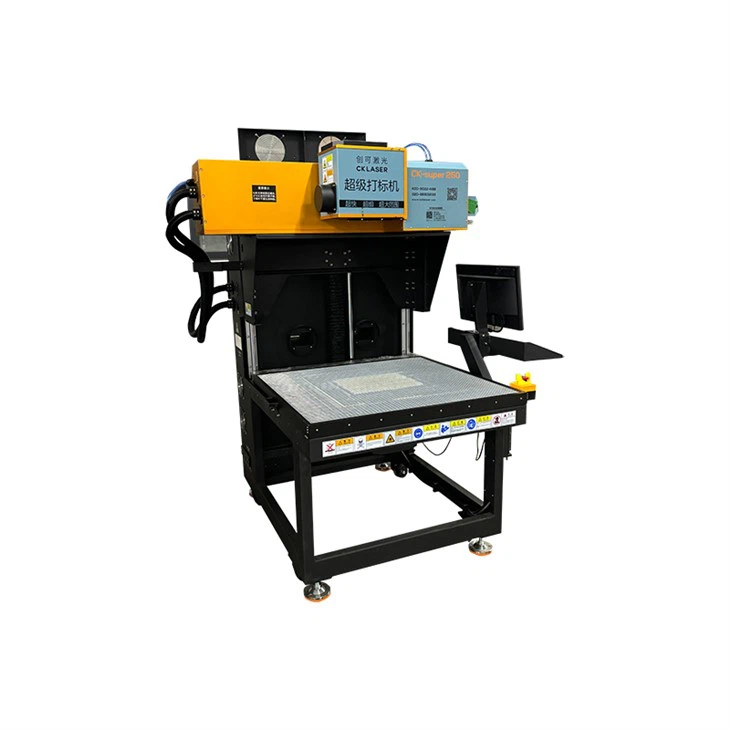

Software - based Transfer
Some label laser die cutters come with dedicated software that allows you to transfer files directly from your computer to the machine. Install the software on your computer, connect the machine to your computer (either via USB or network), and use the software to upload the design files. This method often provides additional features such as previewing the design on the machine and adjusting cutting parameters.
Troubleshooting Common Issues
During the file transfer process, you may encounter some issues. Here are some common problems and their solutions:
File Not Recognized
If the label laser die cutter does not recognize the file, check if the file format is correct. Make sure you have exported the file in a format that the machine supports. Also, check if the file is corrupted. You can try re - exporting the file from your design software.
Connection Problems
If you are using a network or USB connection and are having trouble transferring the file, check the connection cables. Make sure they are properly plugged in. If you are using a wireless network, check the network settings and ensure that both the machine and your computer are connected to the same network.
Related Products and Their Applications
As a label laser die cutter supplier, we also offer other related products that can enhance your label manufacturing process.
The Garment Accessories Laser Marking Machine is a great addition if you are involved in garment accessory production. It can mark various materials used in garment accessories with high precision, adding a professional touch to your products.
The Roll to Roll Fabrics Laser Marker is ideal for fabric - based label production. It can handle continuous rolls of fabric, making it efficient for large - scale production.
Our 100w Co2 Laser Engraver provides powerful engraving capabilities. It can be used for both cutting and engraving on a wide range of materials, including labels.
Conclusion
Transferring design files to a label laser die cutter is a multi - step process that requires careful preparation and attention to detail. By understanding the file compatibility, properly preparing your design files, and using the right transfer method, you can ensure a smooth and successful cutting process.
If you are interested in our label laser die cutters or any of our related products, we encourage you to reach out for a procurement discussion. Our team of experts is ready to assist you in finding the best solutions for your label manufacturing needs.
References
- "Laser Cutting and Engraving Handbook" - A comprehensive guide on laser cutting technology and file management.
- Manufacturer's manuals for label laser die cutters, which provide detailed information on file compatibility and transfer methods.